
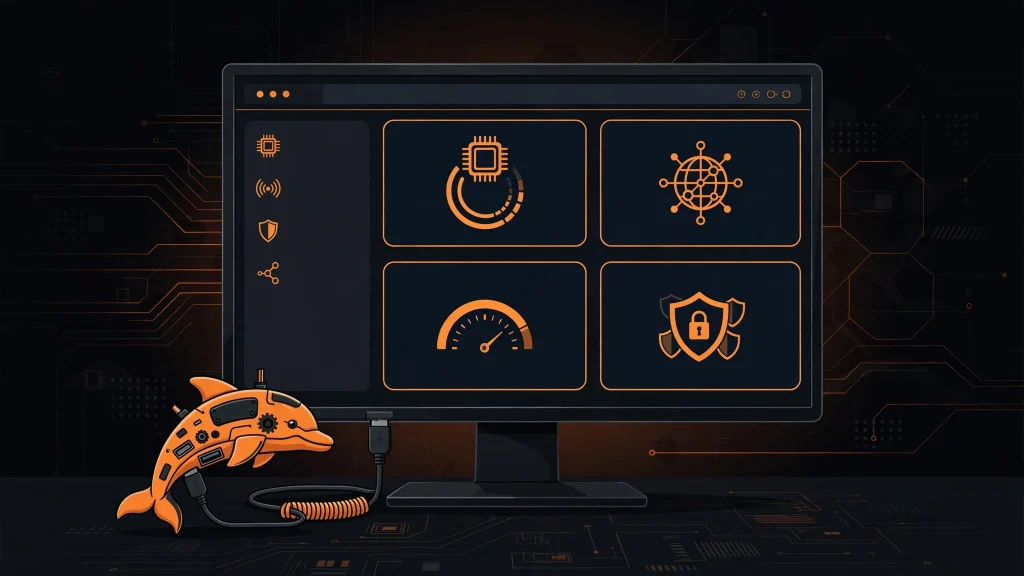
If you own a Flipper Zero, you have probably heard of Qflipper. It is the official desktop companion app made by Flipper Devices Inc., and it is the easiest way to keep your Flipper Zero updated, backed up, and healthy. Instead of tapping through tiny menus on the device itself, you plug it into your computer and manage everything from a big, clear desktop window.
This guide explains exactly what Qflipper is, what it can do, which computers it runs on, and how it compares to the Flipper mobile app. By the end, you will know whether you need it (you almost certainly do) and where to go next.
What Qflipper Does for Your Flipper Zero
Qflipper is a free, open-source desktop application (GPLv3, built with Qt) that talks to your Flipper Zero over USB. The latest official stable release is version 1.3.3, and you should always download it from the official source at update.flipperzero.one. It packs every important maintenance job into one place:
- Firmware updates: install new official firmware and firmware databases straight from your PC, choosing between Release, Release-Candidate, and Development channels.
- microSD file management: browse the card, upload and download files with drag and drop, rename, delete, and create folders without pulling the card out.
- Repair and recovery: fix a corrupted or failed firmware installation, including full DFU-mode recovery for a seemingly dead device.
- Backup and restore: save your dolphin level, XP, settings, and pairing data to your computer before risky operations, then restore them in a couple of clicks.
- Remote control: see your Flipper Zero screen live on your monitor, press its buttons with your mouse or keyboard, and take screenshots for tutorials.
- Command-line tools: a built-in CLI lets advanced users script backups, updates, and diagnostics.
- Automatic self-updates: Qflipper keeps itself current, so you rarely have to think about the app version.
One thing worth clearing up: Qflipper is not firmware. It is the tool you use to install firmware. Mixing up the app version (1.3.3) with a firmware version is one of the most common beginner mistakes, and it causes a lot of confused forum posts.
Why Use Qflipper Instead of Just the Mobile App?
Flipper Zero also has an official mobile app for Android and iOS, and it is great for quick tasks on the go. But Qflipper on a desktop has real advantages when you are doing anything serious:
- Bigger workspace: managing hundreds of files on a microSD card is far easier with a full file manager than on a phone screen.
- Firmware channel control: switching between Release, Release-Candidate, and Development firmware is straightforward in Qflipper’s Advanced controls tab.
- Recovery power: if a firmware update goes wrong and the device will not boot, the desktop repair tools (including DFU recovery) are your best rescue option.
- Screenshots and streaming: capturing a clean screenshot of the Flipper screen for a tutorial takes one click on a PC.
- Logs for troubleshooting: Qflipper keeps the last 100 session logs and can export a full log file, which makes getting help on the forums much faster.
Most long-term Flipper Zero owners end up using both: the mobile app for quick file transfers in the field, and Qflipper at the desk for updates, backups, and repairs.
Qflipper System Requirements and Supported Platforms
Qflipper runs on all three major desktop operating systems, though each has its own installer format:
- Windows: Windows 10 and Windows 11 are supported. The installer bundles the required USB drivers, so you normally do not need to hunt for drivers yourself.
- macOS: macOS 10.14 or later, with a build optimized for Apple Silicon (M1 and newer) as well as Intel Macs.
- Linux: distributed as an AppImage that runs on most modern distributions. You will need to make it executable and install udev rules so the app can talk to the device without root privileges.
Beyond the app itself, you need a Flipper Zero, a USB cable that actually carries data (many cheap cables are charge-only and will silently fail), and a microSD card inserted in the Flipper. The card matters more than people expect: firmware databases live on the microSD card, so several Qflipper features simply will not work without one.
A Quick Tour of the Qflipper Interface
When you first connect your Flipper Zero and open Qflipper, the interface is refreshingly simple. There are a handful of main areas:
Device information
This is the home screen. It shows your device model, firmware version, hardware revision, and storage status. Clicking the little Flipper Zero image opens the remote control view with a live screen stream.
File manager
A two-pane style browser for the microSD card. Drag files in from your computer, right-click a folder and choose Upload here, and use keyboard shortcuts (Ctrl+L to upload, Ctrl+D to download on Windows and Linux; Cmd+L and Cmd+D on Mac) to move fast.
Advanced controls
This is where the power tools live: firmware update channel selection, the Update button, backup and restore, and repair functions. If you only ever click one tab besides the file manager, make it this one.
Logs
Every session is logged, and Qflipper keeps the previous 100 sessions. Hit the LOGS button and then OPEN FULL LOG to export a .txt file. When something goes wrong, this file is the first thing experienced users will ask you for on the Flipper forum at forum.flipperzero.one.
Is Qflipper Free and Safe to Use?
Yes on both counts, with one caveat. Qflipper is completely free and open-source under the GPLv3 license, which means anyone can inspect its code. It is developed by Flipper Devices Inc. itself, the same company that makes the Flipper Zero hardware, so it is the most trustworthy management tool you can use.
The caveat is where you download it from. Only get Qflipper from the official source (update.flipperzero.one). Unofficial forks and repackaged installers float around the internet, and you should never treat those as official. A repackaged installer is the classic way malware gets onto people’s machines, so stick to the official link.
Getting Started with Qflipper
Installation takes about five minutes on any platform. Grab the right build for your operating system, install it, connect your Flipper Zero with a data-capable USB cable, and Qflipper will detect the device automatically. From there, check for firmware updates first, then set up a backup so your dolphin progress and settings are safe.
If you want platform-specific walkthroughs, we have step-by-step installation guides for Windows 10 and 11, macOS, and Linux. And once you are up and running, our firmware update guide walks through choosing the right update channel.
Conclusion
Qflipper is the official, free, open-source desktop companion for Flipper Zero, and it is the tool you will reach for whenever you need to update firmware, shuffle files, back up your data, or rescue a device that will not boot. It runs on Windows, macOS, and Linux, it updates itself, and it turns fiddly on-device chores into quick desktop tasks. Install it from the official source, keep a microSD card in your Flipper, and you are set.
Read next: How to Install Qflipper on Windows 10 and 11 | How to Install Qflipper on macOS | How to Install Qflipper on Linux
Pingback: Install Qflipper on macOS: Intel & Apple Silicon Guide
Pingback: Install Qflipper on Linux: AppImage & udev Rules Guide
Pingback: Qflipper Remote Control & CLI: Complete Guide