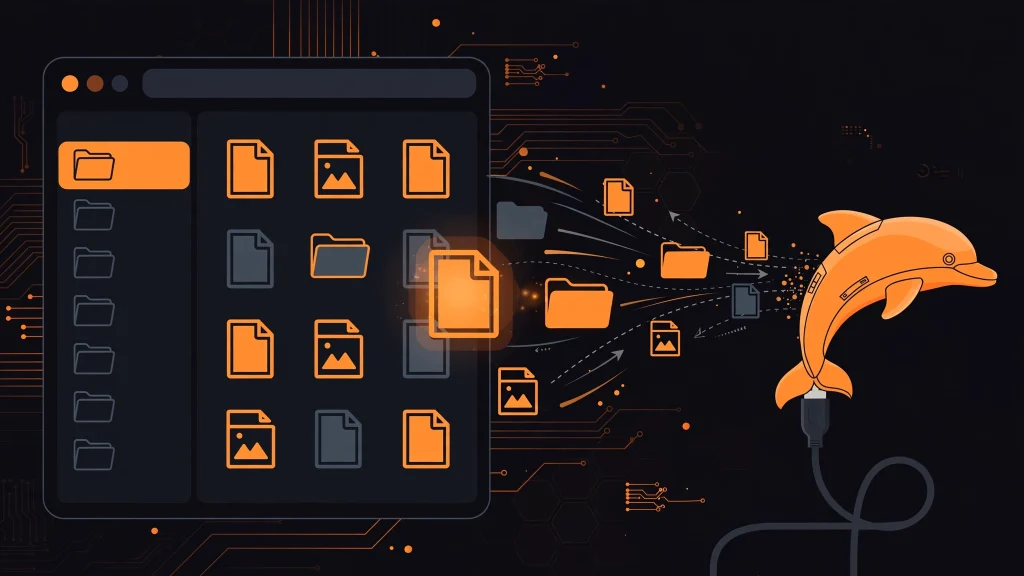
Your Flipper Zero has a tiny screen and five buttons. Trying to organize hundreds of saved signals, remotes and apps on it feels like filing paperwork through a keyhole. The Qflipper file manager fixes that by giving you a full desktop window into your device’s storage, with drag and drop, keyboard shortcuts and a proper folder view.
Whether you want to upload new apps, download your captured signals to a PC, or just clean up a messy microSD card, the file manager tab in Qflipper is the fastest way to do it. This guide covers everything: connecting, uploading, downloading, shortcuts, and what actually lives on that card.
Meet the Qflipper File Manager
Open Qflipper, connect your Flipper Zero over USB, and click the file manager tab. You will see a familiar two-pane style browser showing the device’s storage. Internal memory and the microSD card appear as separate locations, so you always know exactly where a file lives.
Compared to shuffling files on the device itself, the desktop view is night and day. You can see long filenames in full, sort by date or size, open nested folders without endless clicking, and move dozens of files in one motion. If you have ever tried to find one specific saved remote among two hundred on the Flipper’s little screen, you already understand why this exists.
Uploading Files to Your Flipper Zero
Getting files onto the device is deliberately simple. The easiest method is drag and drop: select files on your computer, drag them into the Qflipper window, and drop them on the folder where they belong. That is genuinely all there is to it.
The alternative is the right-click method. Right-click any folder in the file manager and choose Upload here, then pick your files in the dialog. This is handy when you want precision about the destination, or when drag and drop feels fiddly with a deeply nested folder tree.
A few things worth knowing before you upload:
- Put apps and plugins on the microSD card. The card is where user content belongs. Internal storage is small and reserved for system data.
- Firmware databases must sit on the card for updates to work. If Qflipper complains about missing databases, check the card first.
- Match the folder structure. Sub-GHz captures go in their folder, infrared remotes in theirs. Dropping files in the wrong place is the most common reason an uploaded file “doesn’t show up” on the device.
- Large transfers take a while. USB is not instant with hundreds of small files. Let it finish before unplugging.
Installing Apps and Plugins via the File Manager
The most common upload job is installing third-party apps. Flipper apps ship as .fap files, and they belong in the apps folder on your microSD card. Download the .fap from the developer’s release page or the official app catalog, then drag it into the apps folder in the Qflipper window. The app appears in your Flipper’s Apps menu once the device refreshes its listing.
If an app does not show up, check two things. First, confirm the file actually landed inside the apps folder and not its parent directory; a misplaced .fap is invisible to the launcher. Second, check firmware compatibility. Some apps target specific firmware builds, and a version mismatch means a silent no-show with no error message. When in doubt, update your firmware first, then install the app.
Downloading and Organizing Files
Downloading works the same way in reverse. Select files or folders on the device, then download them to your computer. This is how you pull your captured signals off the Flipper for analysis, or how you copy your entire microSD card as a manual backup (remember, the Qflipper backup feature does not touch the card, so this is the way to preserve it).
For day-to-day organizing, the file manager gives you the basics done right:
- Rename files and folders to something you will recognize in a month
- Create new folders to group captures by location, date or project
- Delete duplicates and dead captures you will never use again
- Refresh the view after making changes on the device itself
One caution: leave the system folders alone unless you know exactly what you are doing. Deleting or renaming folders that the firmware expects can cause strange behavior, and in the worst case you will be reaching for the recovery tools.
Qflipper File Manager Keyboard Shortcuts
Once you learn these, you will barely touch the mouse. On macOS, use Cmd instead of Ctrl.
- Upload: Ctrl+L (Cmd+L on Mac)
- Download: Ctrl+D (Cmd+D on Mac)
- Delete: Delete key (Fn+Backspace on Mac keyboards)
- New folder: Ctrl+N
- Rename: Ctrl+E
- Refresh: Ctrl+G
- Navigate folders: arrow keys
Ctrl+L and Ctrl+D alone will change how you work. Upload a batch of apps, download a folder of captures, done in seconds.
Understanding What Lives on Your microSD Card
If you browse the card and wonder what half these folders are, here is the short tour. The card holds the firmware databases that Qflipper updates during firmware installs, plus everything you have added yourself: applications and plugins, sub-GHz saved signals, infrared remotes, RFID and NFC dumps, and any custom assets like animations or dictionaries.
The databases deserve special attention. They are large, they are required for firmware updates, and Qflipper manages them automatically when you update. If an update fails with a database error, the fix is almost always to let Qflipper refresh them, not to delete things by hand. And because none of this is included in a Qflipper backup, the card’s contents are your responsibility. Copy the whole card to your PC every so often. It takes minutes and saves hours.
Keeping Your Files Organized
Flipper collections grow fast. A little structure now prevents a mess later:
- Group by purpose. Separate folders for home remotes, car signals, work badges, and experiments beat one giant pile.
- Name files descriptively. “living-room-tv-sony” will make sense in a year. “remote3” will not.
- Archive old projects. Move finished experiments into an archive folder instead of deleting them. Storage is cheap, regret is not.
- Clean house quarterly. Delete the captures that turned out to be noise. Your future self will thank you.
Troubleshooting File Transfer Problems
Transfers usually just work, but when they do not, run through this list:
- Use a data-capable USB cable. Charge-only cables are the number one cause of weird connection behavior.
- Plug directly into the computer. USB hubs, especially unpowered ones, cause flaky transfers.
- Hit Refresh (Ctrl+G) if the file list looks stale after changes made on the device.
- Reconnect if a transfer stalls halfway. Then check whether the partial file needs deleting before retrying.
- Check the logs via the LOGS button if problems persist. The full log file often names the exact error, and the community forum at forum.flipperzero.one is full of people who have seen it before.
Conclusion
The Qflipper file manager turns storage management from a chore into a two-minute task. Drag and drop your uploads, download your captures for safekeeping, learn the handful of shortcuts, and keep your microSD card organized and backed up. Your Flipper Zero will feel faster and more reliable, and you will spend your time actually using it instead of hunting for files.
Read next: How to Back Up and Restore Flipper Zero With Qflipper, How to Update Flipper Zero Firmware With Qflipper, What Is Qflipper? The Official Flipper Zero Desktop App