
- Flipper Zero Desktop Firmware Manager
qFlipper – Desktop Software for Device Management
qFlipper is a desktop application built for managing Flipper Zero from a computer. It helps users update firmware and databases, work with files stored on the microSD card, repair corrupted firmware installations, create backups, restore supported data and control Flipper Zero remotely.
qFlipper is available for Windows, macOS and Linux, giving Flipper Zero users a desktop-based way to handle device maintenance and firmware-related tasks from one application.
- Windows
- macOS
- Linux
3
Desktop platforms supported
$0
Free to download and use
1
Click to update firmware
GPL-3
Open-source license
- What is qFlipper
The official desktop companion for Flipper Zero
The application is particularly useful when installing firmware, managing files stored on the microSD card or working with recovery-related functions.
Device Information
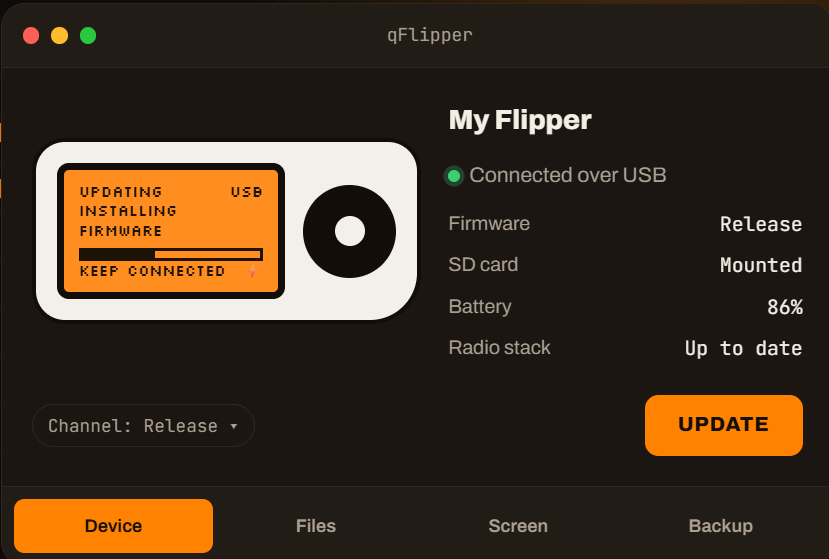
An overview of the connected Flipper Zero. View information about the device and installed firmware, with access to firmware-update functions and remote-control features.
Advanced Controls
Unlock advanced device management capabilities with qFlipper’s powerful control tools. Seamlessly manage firmware updates, perform device recovery, and access essential maintenance functions.
File Manager
Easily access, organize, and transfer files on your Flipper Zero’s microSD card directly from your computer. qFlipper’s intuitive file manager makes device storage management simple, fast, and convenient.
- Features
What Can You Do With qFlipper?
qFlipper combines several Flipper Zero management functions inside one desktop application — firmware, storage, recovery, backup and remote control, across Windows, macOS and Linux.
Update Flipper Zero Firmware
qFlipper combines several Flipper Zero management functions inside one desktop application — firmware, storage, recovery, backup and remote control, across Windows, macOS and Linux.
Manage Device Files
The built-in File Manager lets you browse Flipper Zero storage and perform common file operations.
Backup & restore
Advanced controls provide options for backing up and restoring supported Flipper Zero information.
Screen streaming
View the Flipper Zero display on your computer and interact with the device using on-screen controls or supported keyboard input.
Repair mode
Use qFlipper when a normal firmware installation becomes corrupted or needs to be repaired.
Install from file
Install a firmware package you already downloaded, useful offline or for testing builds.
Command line
The bundled CLI does almost everything the app does, from a terminal or a script.
- How it works
Getting Started With qFlipper
Once qFlipper is installed, connect Flipper Zero to the computer using a USB cable. A microSD card should be inserted when working with firmware-related data, because firmware databases are stored on the microSD card.
Connect by USB
Connect Flipper Zero to the computer with a USB cable.
Start qFlipper
Start qFlipper and wait for the application to recognize the device.
Open Advanced Controls
Open the Advanced Controls tab in qFlipper to access essential device management and firmware recovery tools.
Pick a channel
Select Update Channel and choose the firmware version. Release is recommended for general use.
Click Update
Click Update. Do not unnecessarily disconnect the device while the update is running.
- Installation
Install qFlipper step by step
Select the qFlipper version compatible with your operating system and follow the simple installation instructions below. Your operating system will be detected automatically when supported.
qFlipper for Windows
qFlipper supports Windows 10 and Windows 11. The normal installation process is straightforward:
Download
Download the qFlipper installer for Windows.
Run the installer
Run the downloaded installation file.
Instruction
Follow the installation instructions.
Launch
Open qFlipper to start managing your Flipper Zero.
Connect
Connect Flipper Zero to the computer using USB.
qFlipper for macOS
qFlipper supports macOS 10.14 or later and is optimized for M1 Apple Silicon systems. After downloading the application:
Open the package
Open the qFlipper installation package.
Install
Complete the macOS installation process.
Launch
Open qFlipper to start managing your Flipper Zero.
Connect
Connect Flipper Zero to the Mac using USB.
Wait for detection
Wait for the application to recognize the device.
qFlipper for Linux
qFlipper is distributed for Linux in AppImage format. Before launching the application, the AppImage must be made executable.
Make qFlipper executable
Open Terminal in the directory containing the AppImage and run: $ chmod +x filename.AppImage
Start the application
Launch the application easily using the provided command in your terminal. $ ./filename.AppImage
Install udev rules
Install udev rules to enable seamless Flipper Zero communication on Linux without requiring administrator privileges for device access. $ chmod +x filename.AppImage
- Use cases
Who Uses qFlipper and Why?
qFlipper simplifies Flipper Zero management by combining firmware updates, file management, backups, recovery, and remote control into one efficient, user-friendly desktop application.
- EVERYDAY USERS
Keep Your Firmware Up to Date
Easily install and manage Flipper Zero firmware updates directly from your computer. Choose the stable Release channel for reliable performance and a seamless user experience.
- Firmware Updates
- Stable Release
- microSD Management
- RECOVERY
Restore and Repair Your Flipper Zero
Easily recover your Flipper Zero from failed firmware updates, corrupted installations, or unexpected device issues. Restore functionality with qFlipper’s reliable firmware repair and recovery tools.
- Firmware Repair
- DFU Installation
- ORGANIZERS
Effortless microSD File Management
Easily browse, transfer, rename, and organize your Flipper Zero files directly from your computer. Manage microSD storage efficiently with intuitive file management tools.
- File Manager
- File Transfers
- CAREFUL UPDATERS
Secure Your Important Data
Protect your Flipper Zero data with reliable backup and restore options. Preserve supported settings, progress, and pairing information before firmware updates or recovery operations.
- Data Backup
- Restore
- CREATORS & EDUCATORS
Seamless Screen Sharing & Tutorials
Display your Flipper Zero screen directly on your computer and capture screenshots effortlessly. Ideal for creating tutorials, recording demonstrations, and preparing technical documentation.
- Screen Streaming
- Screenshots
- DEVELOPERS & ADVANCED USERS
Advanced Automation & Debugging
Streamline Flipper Zero development with qFlipper’s command-line tools. Simplify automated workflows, firmware testing, debugging, and device diagnostics for efficient development and troubleshooting.
- CLI Tools
- Firmware Testing
- Logs
- TESTERS
Remote Control & Device Testing
Control and monitor your Flipper Zero directly from your computer. Use on-screen controls, keyboard input, and session logs to simplify device testing and troubleshooting.
- Remote Control
- Device Testing
- Session Logs
- Download
Download qFlipper for Windows, macOS & Linux
Get qFlipper for your operating system and manage your Flipper Zero with ease. Select your platform below to get started.
- SupportsWindows 10 & 11
- FormatInstaller
- SetupRun & follow steps
- SupportsmacOS 10.14 or later
- OptimizedM1 Apple Silicon
- SetupRun & follow steps
- FormatAppImage
- Before launchMake executable
- SetupRun & follow steps
- Compatibility
Compatibility & comparisons
Explore qFlipper’s compatibility across Windows, macOS, and Linux. Compare desktop and on-device management features, and understand the differences between firmware channels to choose the best option for your Flipper Zero.
| Platform | Supported versions | Package | Extra setup | Connection |
|---|---|---|---|---|
| Windows | Windows 10 and Windows 11 | Installer | Run the installer and follow the instructions | USB |
| macOS | macOS 10.14 or later · optimized for M1 Apple Silicon | Installation package | Complete the macOS installation process | USB |
| Linux | AppImage distribution | AppImage | Make executable (chmod +x); udev rules may be required |
USB |
| Task | qFlipper (desktop) | Flipper Zero interface only |
|---|---|---|
| Working environment | Larger desktop environment on your computer | The device's own small screen and buttons |
| Firmware updates | Choose a channel and update over USB | — |
| File management | Browse, upload, rename, delete, download, drag & drop, shortcuts | — |
| Backup & restore | Settings, progress, pairing data (supported) | — |
| Display viewing | Screen streaming & screenshots to PC | Look at the physical device |
| Recovery tools | Firmware repair & .dfu install | — |
| Logs | Current session + previous 100 sessions | — |
- Troubleshooting
qFlipper Troubleshooting
Resolve common qFlipper issues with practical troubleshooting solutions. Identify and fix connection errors, firmware update failures, application problems, and operating system compatibility issues to keep your Flipper Zero running smoothly.
Flipper Zero is not detected
Check that:
- The USB cable is connected properly
- The device is powered
- qFlipper is running
- The operating system recognizes the connection
- Linux udev rules are installed when required
Firmware update fails
If an update fails:
- Check the USB connection
- Confirm Flipper Zero remains connected.
- Verify that the microSD card is inserted.
- Restart qFlipper.
- Review qFlipper logs for more information.
- Try the appropriate stable firmware process again.
Use logs to diagnose problems
qFlipper provides session logs that can help identify problems during firmware updates and other operations. For the current session:
- Click LOGS.
- Click OPEN FULL LOG.
- Save the log as a .txt file.
These logs can be useful when trying to understand what happened before an error occurred.
Access logs from earlier sessions
qFlipper stores logs from the previous 100 sessions. To access them:
- Open LOGS.
- Right-click the current log area.
- Select Browse all logs.
- Open the required log file by checking its timestamp.
This makes it possible to investigate problems that did not occur during the current session.
Fix Corrupted Firmware & Device Issues
If your Flipper Zero experiences failed updates, corrupted firmware, or unexpected behavior, qFlipper provides reliable recovery and repair tools to help restore device functionality and ensure smooth performance.
- SYSTEM REQUIREMENT
System requirements
Ensure a seamless qFlipper experience by verifying your system’s compatibility before installation. qFlipper supports Windows 10 and 11, macOS 10.14 or later, and compatible Linux distributions through AppImage. For reliable device communication, you’ll need a Flipper Zero, a USB data cable, and the appropriate qFlipper version for your operating system.
A microSD card is essential for standard firmware updates and file management, while Linux users may need to configure udev rules to enable device access without administrator privileges. Meeting these requirements helps ensure smooth installation, reliable connectivity, and efficient Flipper Zero management.
- FAQ's
qFlipper FAQ's
What is qFlipper?
qFlipper is a desktop application designed to manage Flipper Zero, offering firmware updates, file management, backups, recovery, and remote control.
Is qFlipper free to use?
Yes, qFlipper is free and open-source software available for Windows, macOS, and Linux.
Where can I download qFlipper?
You can download qFlipper from the official Flipper Zero website or its GitHub repository.
Which operating systems support qFlipper?
qFlipper supports Windows 10 and 11, macOS 10.14 or later, and compatible Linux distributions.
Does qFlipper require an internet connection?
qFlipper requires internet access to download firmware updates, but some device management features work offline.
How do I install qFlipper?
Download the version compatible with your operating system, follow the installation instructions, and connect your Flipper Zero using a USB cable.
How do I connect Flipper Zero to qFlipper?
Connect your Flipper Zero to your computer using a USB data cable, then launch qFlipper to establish the connection.
Can qFlipper update Flipper Zero firmware?
Yes, qFlipper allows you to install supported firmware updates directly from your computer.
Can I manage files using qFlipper?
Yes, qFlipper provides a built-in file manager to browse, transfer, rename, and organize files stored on your Flipper Zero’s microSD card.
Can qFlipper back up my Flipper Zero?
Yes, qFlipper supports backup and restore functionality to help preserve supported device settings and data.
Why is qFlipper not detecting my Flipper Zero?
Connection issues may result from faulty USB cables, missing permissions, or software problems. Try reconnecting your device or restarting qFlipper.
What should I do if a qFlipper firmware update fails?
Check your USB connection, restart qFlipper, and retry the update. Use firmware recovery tools if the problem continues.
Can qFlipper recover corrupted firmware?
Yes, qFlipper includes firmware recovery tools designed to help restore devices affected by corrupted firmware or failed updates.
Does qFlipper support remote control?
Yes, qFlipper allows you to view and interact with your Flipper Zero directly from your computer through its remote control feature.
Why does qFlipper need udev rules on Linux?
udev rules allow qFlipper to communicate with your Flipper Zero through USB without requiring administrator privileges for normal device access.